The Ultimate Guide to Console Access Support for Data Center Teams
You’ve been sent to a rack because the network is down. You can’t SSH in. The customer is panicking. You plug in your console cable, open PuTTY, and… nothing. Just a blank screen or a waterfall of gibberish characters.
In the data center, “Out-of-Band” (OOB) management is the last line of defense. If you can’t get a CLI (Command Line Interface) prompt, you are just a person standing next to a very expensive space heater. Here is the field-tested guide to mastering console access.
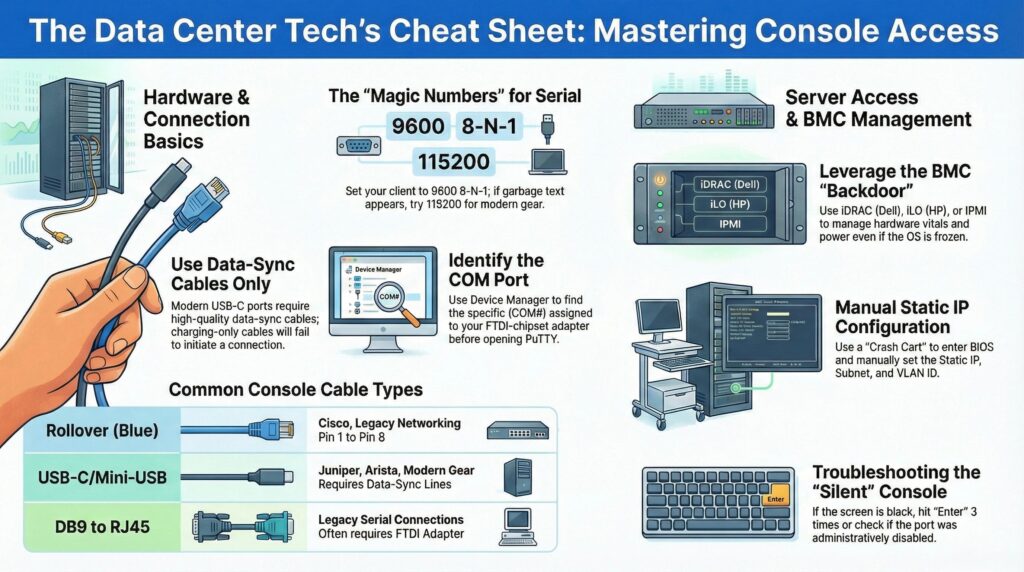
1. The “Blue Cable” Mystery: Rollover vs. Straight-Through
Most junior techs make the mistake of plugging a standard Cat6 patch lead into a console port. It fits, but it won’t work.
- The Rollover Cable: Traditional Cisco-style console cables use a “rollover” pinout where Pin 1 on one end connects to Pin 8 on the other.
- The Trend: Modern gear (like Juniper or newer Arista) is moving toward Mini-USB or USB-C console ports. If you don’t have a high-quality data cable in your bag, you’re stuck before you start.
Don’t just grab a phone charger. There are cases where techs waste an hour because they used a USB-C cable meant for charging only. In a data center, your cable must have Data-Sync lines. If you plug it in and Windows doesn’t make that ‘ding’ sound, your cable is just a power cord. Throw it away and get a real data cable.”
2. The Settings Trap: The “Magic Numbers”
If you see “Garbage Text” (weird symbols like æÿþ), your Baud Rate is wrong. The device is talking faster or slower than your laptop is listening.
- The Standard: 9600 Baud, 8 Data Bits, 1 Stop Bit, No Parity (9600 8-N-1).
- The Modern Speed: Newer switches and storage arrays (like NetApp or some Dell EMC) often default to 115200.
- The Pro Move: If 9600 doesn’t work, don’t guess. Try 115200. If that fails, check the manufacturer’s documentation for “Flow Control” settings, sometimes “Hardware Flow Control” needs to be turned OFF to get a prompt.
3. The FTDI Factor: Don’t Buy Cheap Adapters
If your laptop doesn’t even “see” your USB-to-Serial adapter, it’s likely a driver issue.
DataCenterDesk Field Note: Avoid the $5 “Prolific” chipset adapters found on generic sites. They are notorious for driver crashes on Windows 11. Always use an adapter with an FTDI chipset. They are plug-and-play, stable, and won’t blue-screen your laptop in the middle of a critical firmware update.
Finding the “Ghost” Port: The Device Manager Shuffle
Your laptop doesn’t automatically know which USB hole is the “Serial” port. Before you open PuTTY, you have to find the COM Port number. If you guess, you’ll just get a “Serial Error: Unable to open connection.”
How to find it:
- Right-click the Start Button and select Device Manager.
- Scroll down to Ports (COM & LPT).
- Look for “USB Serial Port” or “FTDI USB-to-Serial.”
- Note the number in the brackets, for example, (COM4).
Pro-Tip: If you see a yellow exclamation mark ⚠️ next to the port, your driver is broken. If you don’t see “Ports” at all, your laptop doesn’t realize anything is plugged in. Try a different USB port or, better yet, a different cable.
If the COM port is there but the screen is still black, check for Zombies. Sometimes a previous PuTTY session crashes but keeps the COM port ‘locked’ in the background. If you can’t open the port, check your Task Manager for a ghost putty.exe process and kill it.
4. Crash Carts vs. KVMs: When Serial Isn’t Enough
If the device is a server (Dell, HP, Supermicro) rather than a switch, a serial cable might only show you the BIOS, if it shows anything at all.
- The KVM (Keyboard, Video, Mouse): You need a “Crash Cart” (a mobile monitor/keyboard setup) or a portable USB KVM adapter.
- The Management Port: Look for the port labeled iDRAC, ILO, or IPMI. This is a dedicated Ethernet port for remote management. If the customer hasn’t configured it, you’ll need to plug in your crash cart, boot to BIOS, and set a static IP for them.
5. Troubleshooting the “Silent” Console
You’re plugged in, settings are 9600 8-N-1, but the screen is just black.
- Hit “Enter” 3 times: Many consoles stay silent until they receive a carriage return.
- Check the “Console Lock”: Some high-security facilities disable physical console ports via software. You’ll need to verify with the customer if the port is administratively “shutdown.”
- Power Cycle the Adapter: Unplug your USB adapter and plug it back in. Sometimes the COM port on your laptop gets “stuck” by another program.
When the Serial Port is Dead: Enter the BMC
Sometimes, the console port just won’t talk. On servers (Dell, HP, Supermicro), you have a “Side-Car” called a BMC (iDRAC, ILO, or IPMI).
The “Backdoor” to the Server: What is a BMC?
When we talk about servers (like a Dell PowerEdge or an HP ProLiant), “Serial Console” is often just the tip of the iceberg. These machines have a BMC (Baseboard Management Controller), a tiny, independent computer inside the server that stays powered on even if the server itself is “off.”
- iDRAC (Integrated Dell Remote Access Controller)
- iLO (Integrated Lights-Out for HP)
- IPMI (Intelligent Platform Management Interface – the generic version used by Supermicro and others)
Why are they used in the Console process?
Think of the Serial Console as a physical telephone line; if the line is cut or the setting is wrong, you’re out. The BMC is like a satellite link. It’s used because:
- Virtual KVM: Through the BMC’s dedicated Ethernet port, a customer can see the full BIOS and the OS desktop from their home office as if they were standing right there with a monitor.
- Remote Power Control: This is the big one. If a server is completely frozen, the Serial Console might be dead. Through the iDRAC/iLO, the customer can “Cold Boot” or “Power Cycle” the hardware without asking you to pull the plug.
- Hardware Health: It monitors the “Vitals.” Before you even open the chassis, the BMC tells the customer which fan failed or which DIMM slot is throwing errors.
“Initial Config”
The reason we deal with BMCs is that they are useless until they have an IP address. Usually, a new server comes out of the box with “DHCP” or a default IP that doesn’t work on the customer’s network.
Your job is to bridge that gap: You plug in your Crash Cart, tap F2 or F10 during bootup, and navigate to the “Management” or “iDRAC” settings. You manually type in the Static IP, Subnet, and Gateway provided by the customer. Once you hit “Save,” you’ve essentially handed the keys of the server back to the customer.
When you’re in the BIOS setting that Static IP, don’t forget the VLAN ID. If the customer’s management network is tagged, and you don’t set that VLAN in the iDRAC settings, the ‘Satellite Link’ will never reach the ground. You’ll save the IP, but it’ll stay unreachable until you go back in and tag it correctly.
The “Silent” Console Trick
You’re plugged in, your settings are 9600 8-N-1, but the screen is just black. Before you give up:
- Hit “Enter” 3 times: Many consoles stay silent until they see activity.
- The “Break” Sequence: If the customer lost their password, you might need to send a “Break” signal (Ctrl+Break in PuTTY) during the first 5 seconds of bootup to get into recovery mode. Which is a whole topic in itself. We can cover that topic other time.
Console access is the ultimate Data Center Engineer/Technician skill. It’s loud, it’s cold, and the pressure is on but once you see that > or # prompt appear on your screen, you’ve officially saved the day.